How to check an Android phone for spyware
If you are worried that someone may be monitoring your phone, start by checking what is installed and what access apps have. A finding can be a clue, not proof; take time to understand it before acting.
See what SpywareMonitor checks Read the step-by-step help
SpywareMonitor is in testing now and comes to Google Play in mid-November 2026.
Think about safety before changing anything. Removing an app or changing a setting could alert the person who installed it. If that might put you at risk, use a safer device to seek support first.
What can spyware look like?
Some monitoring apps are designed to stay out of sight. Others may appear like ordinary apps but have access that could be misused. Battery drain, unusual data use or a phone behaving differently can have many causes; these signs alone do not confirm spyware.
A more useful check is to review apps and the access they have, while remembering that legitimate accessibility, location or notification tools can also need powerful permissions.
Apps you do not recognise
Look at the app name, developer and where it came from. An unfamiliar name is a reason to inspect, not a verdict.
Sensitive access
Check accessibility, notification, location and device-admin access and whether each app has a clear reason to use it.
A careful way to check
- Choose a safe moment and device. If someone may be watching this phone, consider using a trusted person’s device to look for help or make a plan.
- Review installed apps. Check the full app list in Android settings, including apps without an obvious home-screen icon. Compare unfamiliar apps with their publisher and purpose.
- Review special access. In Android settings, inspect Accessibility, Notification access, Device admin apps, Location and apps allowed to install other apps. Menu names vary by phone.
- Look for combinations, not one permission alone. Several powerful permissions together may deserve attention, especially if an app’s purpose does not explain them.
- Record what you see, if safe. A note, screenshot or report saved somewhere the other person cannot access may help you discuss it with a support service.
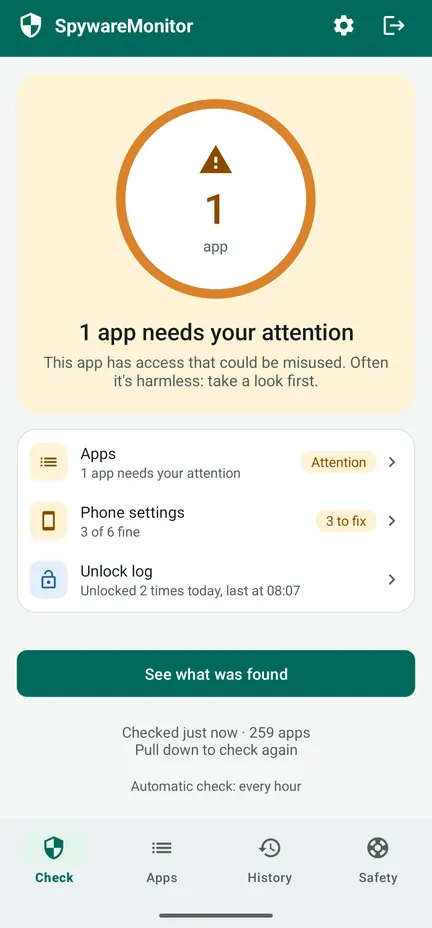
Orange does not mean confirmed spyware. SpywareMonitor describes potentially misusable access in orange and known stalkerware in red. Review the reasons and context before drawing conclusions.
What a phone scan cannot prove
No ordinary app can promise a phone is completely clean. A scan may not see apps in a work profile or spyware on a rooted phone. Monitoring can also happen through a shared account, location sharing, a linked device or a physical tracker, without a spyware app being installed.
SpywareMonitor checks Android apps and selected phone settings locally. It does not send scan data over the internet. The app supports Android 8 and newer; check the home page for current availability and details.
If something looks concerning
Pause before uninstalling it. Consider keeping evidence and getting advice from a trusted person, a local support organisation or law enforcement, using a device that is not being monitored where possible. If you are in immediate danger, contact local emergency services.
For the app’s safety steps, see what to do when something is found and how to use the Safety tab.
Frequently asked questions
Can I tell from battery drain if my phone has spyware?
No. Battery drain has many possible causes, including normal app activity, an ageing battery or poor signal. Treat it as a prompt to check, not proof of monitoring.
Should I uninstall an app I do not recognise?
Not automatically. If a person may be monitoring you, removal can alert them. Consider your safety and get support before making changes.
Can spyware be installed through my Google account?
Account access can expose some information without a spyware app on the phone. Review account sessions and location sharing from a safe device, and get help if changing access could alert someone.
More guides
- How to find hidden apps on Android — the full app list, apps without an icon and special access.
- What to do if you find spyware on your phone — safety first, evidence, and getting help.
- Can someone track your phone without spyware? — accounts, location sharing, linked devices and trackers.
- SpywareMonitor help — how the app works, step by step.
This page offers general information, not a diagnosis or emergency response. Android settings vary by device and software version.